

 GitHub
Get Hedhog updates in your inbox
New releases, fresh recipes, and breaking changes — no spam.
File Storage
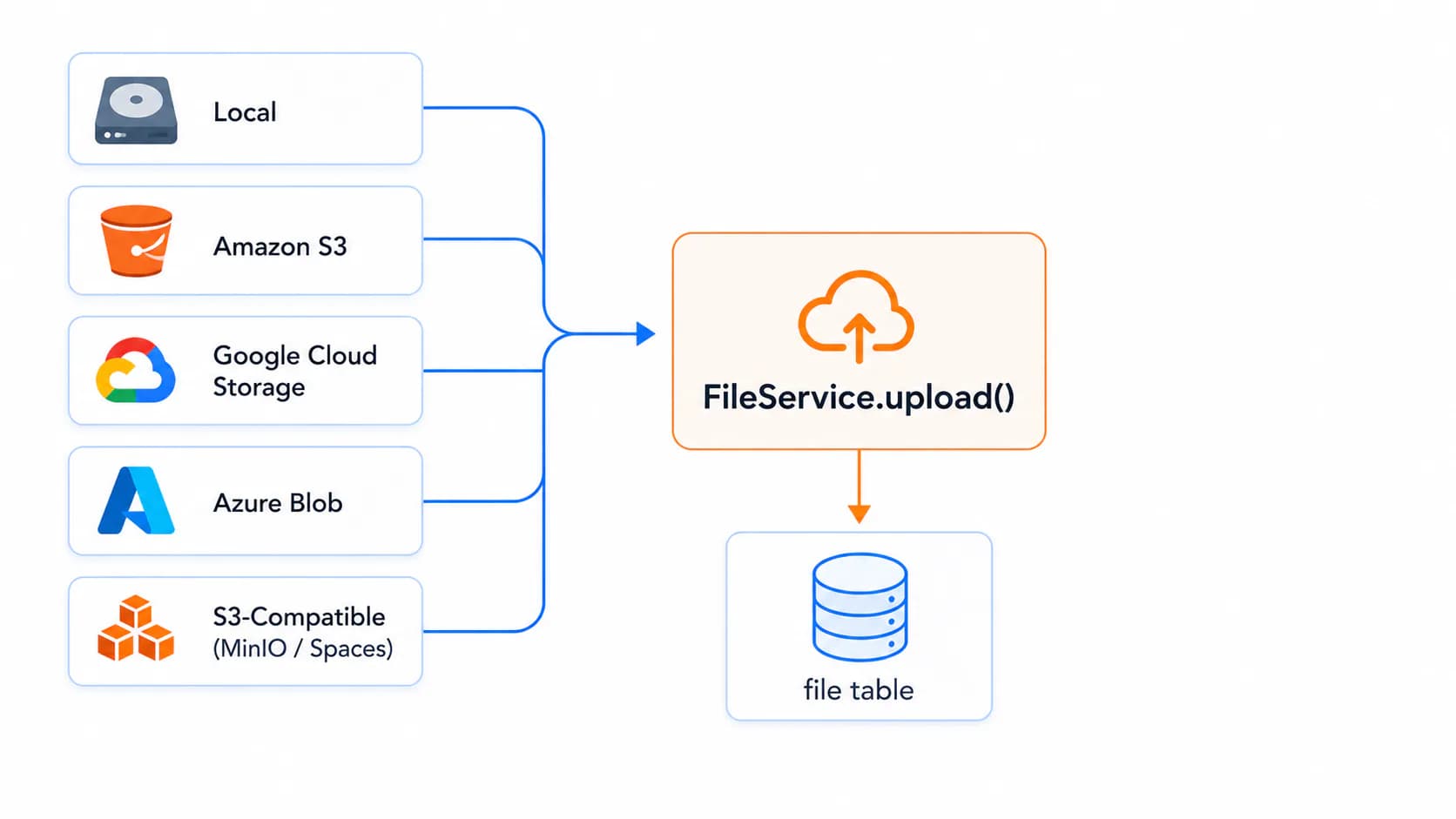
Hedhog handles file uploads through @hed-hog/core's FileService. All uploaded content goes through a single storage adapter, selected once via an Integration Profile. Swap the provider later without touching application code or re-uploading existing files.
Status: ✅ Fully implemented — Local, S3, GCS, Azure Blob, and S3-compatible providers all work.
Quick Setup
- Create an Integration Profile (type Storage, pick a provider) at Settings → Integration Profiles
- Fill in the provider's config fields (tables below)
- Go to Settings → Configurations → File Storage and set Storage Profile to it
- Upload a test file anywhere in the admin (e.g. your own avatar) and confirm the returned URL actually loads
How It Works
- A file is uploaded through any endpoint that calls
FileService.upload() FileServicereads thefile-storage-profile-idsetting to find the active Integration Profile (typestorage)- It maps that profile's provider-specific
configJSON into the adapter the matching provider class expects (local disk, S3, GCS, Azure Blob, or an S3-compatible service) - The file is written via the adapter, a record is saved in the
filetable with the resulting URL/key and metadata, and the public URL is returned to the client
If no storage profile is configured yet, the server still starts normally — it just logs a warning on boot, and any upload attempt fails with No file storage profile configured until you set one. This is the expected state right after a fresh install.
Supported Providers
| Provider | integration_provider slug | Description |
|---|---|---|
| Local | local | Stores files on the server's own filesystem |
| Amazon S3 | s3 | AWS object storage |
| Google Cloud Storage | gcs | GCP object storage |
| Azure Blob Storage | azure-blob | Microsoft Azure object storage |
| S3-Compatible | s3-compatible | MinIO, Wasabi, DigitalOcean Spaces, and any other S3-API-compatible service |
Setting Up
- Go to Settings → Integration Profiles → New → Type Storage, pick a provider, and fill in its config fields (table below)
- Go to Settings → Configurations → File Storage and set the Storage Profile field (
file-storage-profile-id) to that profile - Uploads immediately start using the new provider — existing
filerecords and their URLs are not migrated or rewritten, since Hedhog has no way to know whether old files should move
Local
Stores files on the server filesystem. Suitable for development or single-server deployments — not recommended once you run more than one API instance, since uploads written by one instance won't be visible to the others.
| Config field | Description |
|---|---|
base_path | Directory (relative to the API process, or absolute) where files are written. Defaults to storage if left empty |
Make sure the API process has write permission to this directory, and that it survives deploys/restarts (don't point it inside a directory your deploy pipeline wipes).
Amazon S3
| Config field | Description |
|---|---|
access_key_id | AWS access key ID |
secret_access_key | AWS secret access key |
region | AWS region (defaults to us-east-1 if left empty) |
bucket | S3 bucket name |
IAM permissions needed, scoped to the bucket:
{
  "Effect": "Allow",
  "Action": ["s3:PutObject", "s3:GetObject", "s3:DeleteObject"],
  "Resource": "arn:aws:s3:::your-bucket/*"
}
Decide up front whether the bucket serves files publicly or via signed URLs — that's a bucket policy decision made in the S3 console, not a Hedhog setting.
Google Cloud Storage
| Config field | Description |
|---|---|
key_file_json | The full contents of a GCP service account JSON key, pasted as a string — not a file path. The API process never reads from disk for this provider |
bucket | GCS bucket name |
Create the service account under IAM & Admin → Service Accounts, grant it the Storage Object Creator and Storage Object Viewer roles, then Keys → Add Key → JSON and paste the downloaded file's contents into key_file_json.
Azure Blob Storage
| Config field | Description |
|---|---|
account | Storage account name |
key | Storage account access key |
container | Blob container name |
Find the account name and key in the Azure portal under Storage account → Access keys. The container must already exist — Hedhog does not create it automatically.
S3-Compatible (MinIO, Wasabi, DigitalOcean Spaces, …)
Use this provider for anything that speaks the S3 API but isn't AWS itself.
| Config field | Description |
|---|---|
access_key_id | Access key for the service |
secret_access_key | Secret key for the service |
region | Region identifier the service expects (e.g. nyc3 for DigitalOcean Spaces) |
bucket | Bucket / Space name |
endpoint | Full custom endpoint URL, e.g. https://nyc3.digitaloceanspaces.com for Spaces, or https://minio.your-domain.com for a self-hosted MinIO |
Without endpoint set, requests go to AWS's own endpoints and will fail against any non-AWS service — this is the single field people most often forget when switching from S3 to a compatible provider.
Verify It Worked
- Upload a file anywhere in the admin (a user avatar works well) and confirm a new row appears in
file - Open the returned URL directly in a browser tab — it should load the file, not 404 or hang
Troubleshooting
| Symptom | Likely cause |
|---|---|
No file storage profile configured | file-storage-profile-id isn't set, or points at a deleted profile |
Integration profile X is not a storage profile | Wrong profile selected — its type isn't storage |
Provider <slug> not found | The file_provider seed row for that provider is missing — usually means a migration wasn't run after adding storage support |
| Uploads succeed but the URL 404s | For Local storage, the serving web server/proxy isn't pointed at base_path; for S3/GCS/Azure, the bucket/container isn't public and no signed-URL flow is wired up |
| Old files broke after switching providers | Expected — Hedhog never migrates existing files between backends automatically |