

 GitHub
Get Hedhog updates in your inbox
New releases, fresh recipes, and breaking changes — no spam.
OAuth / SSO
Hedhog's auth library supports social and enterprise login via OAuth 2.0. Once a provider is configured, users can sign in, register, or link an existing account to a third-party identity with one click.
This guide assumes you have a running Hedhog instance and admin access. If you just cloned the project, the default URLs are:
- Admin (frontend):
http://localhost:3200 - API (backend):
http://localhost:3100
These map directly to the url setting (Settings → Configurations → General → System URL), which Hedhog uses to build every OAuth redirect URL. Update it to your real domain before configuring any provider in production — every URL below is derived from it.
Status: ✅ Fully implemented — Google, GitHub, Microsoft, Microsoft Entra ID, Facebook, Apple, and LinkedIn all work end-to-end, including the login/register/connect account-linking flows. Native apps (Electron, Android, iOS) also sign in through the same hub, via a system-browser redirect.
Quick Setup
- Create an Integration Profile (type OAuth / SSO, pick a provider) at Settings → Integration Profiles
- Get
client_id/client_secretfrom the provider's console and paste them into the profile - Register the single callback URL for that provider in that console — see the table below (GitHub and Apple use a fixed backend URL instead)
- Go to Settings → Configurations → OAuth, select the profile on that provider's tab, and flip Enable
- Click "Sign in with
<Provider>" on the login page to confirm it redirects and logs you in
How It Works
OAuth in Hedhog has three distinct flows, not one:
| Flow | Triggered from | Purpose |
|---|---|---|
login | "Sign in with Google/GitHub/…" button | Authenticates an existing user, or falls through to register/connect automatically |
register | "Sign up with…" button | Creates a brand-new account from the provider's profile |
connect | Logged-in user's Account → Linked accounts | Attaches a provider identity to the current account without logging out |
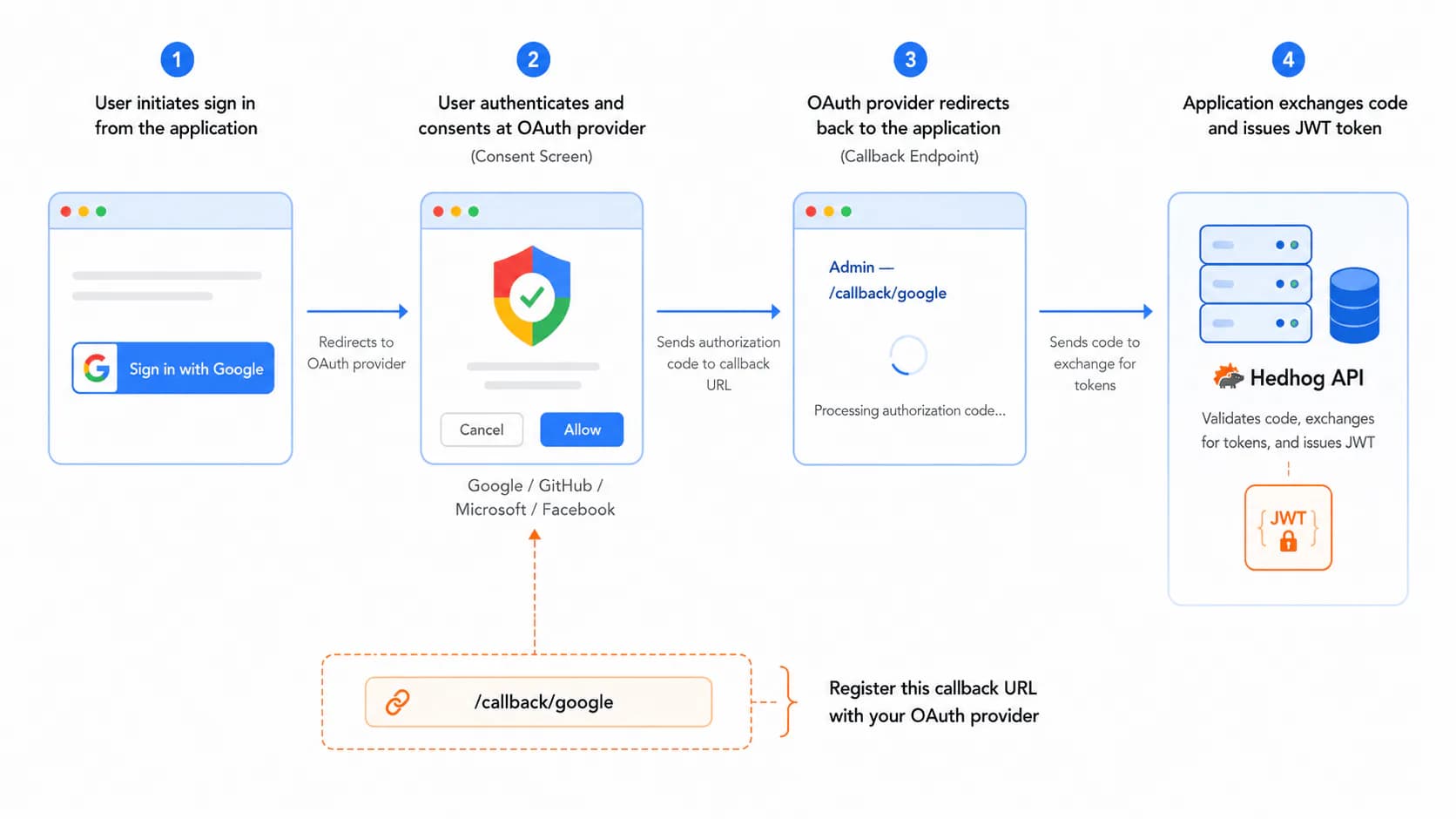
Unlike many OAuth setups, Hedhog does not register a separate redirect URI per flow. Every provider gets exactly one callback URL, and the flow — plus the app that initiated it — travels inside a signed state parameter instead. The round trip:
- The browser opens
{API_URL}/oauth/{provider}/login(or/register,/connect), optionally with a?redirectApp=<key>query param when a non-admin app (e.g.training) is the one initiating the flow - The Hedhog API signs a
stateof the formhhweb.<app>.<flow>.<sig>(HMAC-signed,appdefaults to the sentinelselfwhen noredirectAppis given) and redirects the browser to the provider's authorization screen, requesting a single, flow-lessredirect_uriof{ADMIN_URL}/callback/{provider} - The user approves access on the provider's site
- The provider redirects the browser back to
{ADMIN_URL}/callback/{provider}?code=...&state=... - The admin's
/callback/[provider]dispatcher page reads and parses thestate, resolves the initiating app's origin from theapp-urlssetting (exposed viaGET /setting/initial), and forwards the browser to${origin}/callback/{provider}/{flow}— which is the admin itself when the app isselfor unknown - That flow page calls
{API_URL}/oauth/{provider}/callback/{flow}?code=...to finish the exchange - The API exchanges the code for an access token, fetches the profile, and issues a Hedhog JWT session (or creates/links the account, for register/connect)
Origin binding: when the resolved app isn't self, the API also requires the callback request's Origin (or Referer, as a fallback) header to match that app's registered URL in app-urls — otherwise it rejects with 400 OAuth callback origin is invalid. This is what stops a forged state from redirecting tokens to an arbitrary origin.
GitHub and Apple are both exceptions to the single-callback rule, for different reasons: neither lets Hedhog register the flow-carrying {ADMIN_URL}/callback/{provider} URL, so both always redirect to a fixed backend URL, {API_URL}/oauth/{provider}/callback, and the API itself 302-redirects the browser onward to {ADMIN_URL}/callback/{provider}/{flow} to continue the same flow as the other providers. Apple additionally requires response_mode=form_post, so its backend endpoint is a POST, not a GET — the API converts that POST into the same GET-based bounce internally.
You do not write any of this OAuth exchange code yourself — @hed-hog/core's OAuthService and the per-provider classes under libraries/core/src/oauth/providers/ handle it.
The Redirect URIs You Actually Need to Register
This is the part new developers usually get wrong: it looks like a lot of moving pieces (login/register/connect), but almost every provider only needs one redirect URI registered, because the flow travels in the state, not in the path.
| Provider | Redirect URI to register |
|---|---|
| Google, Facebook, Microsoft, Entra ID, LinkedIn | {ADMIN_URL}/callback/<provider> |
| GitHub, Apple | {API_URL}/oauth/<provider>/callback (fixed URL — the flow travels in state) |
Replace <provider> with google, facebook, microsoft, microsoft-entra-id, or linkedin. With the default local setup that's, e.g. for Google:
http://localhost:3200/callback/google
If you forget to register this URI (or register it with a mismatched scheme/trailing slash), every flow — not just register/connect — will fail with a provider-side "redirect_uri_mismatch" error, since login, register, and connect all share the same URI now.
Most providers also ask for app-level metadata that has nothing to do with the callback — typically a Homepage URL, a Privacy Policy URL, and a Terms of Service URL — before they'll let you publish the app outside testing/development mode. These don't need to point anywhere functional during development; you can use your marketing site or even the admin URL itself, but production apps (especially Google's "External" consent screen and Facebook apps in Live mode) will refuse verification without all three.
Setting Up the Integration Profile (every provider)
OAuth credentials are not stored as flat settings — they live in a generic Integration Profile, the same mechanism used for email, storage, AI, and payment providers:
- Go to Settings → Integration Profiles (
/core/integration/profiles) → New - Choose Type: OAuth / SSO and Provider:
Google,GitHub,Microsoft,Facebook,Microsoft Entra ID,Apple, orLinkedIn - Fill in
client_idandclient_secretfrom the provider console — except Entra ID, which also needstenant_id, and Apple, which needsteam_id,key_id, and aprivate_keyinstead of a staticclient_secret(see the Apple section below) - Save — this creates a row in
integration_profilewith your credentials in itsconfigJSON
Then, for each provider you want to activate, go to Settings → Configurations → OAuth and, on that provider's tab:
| Field | What it does |
|---|---|
<Provider> OAuth Profile | Entity picker — select the Integration Profile you just created |
Enable <Provider> | Switch — flips the provider on/off without deleting the profile |
OAuth Scopes | Checkboxes — permissions requested during consent |
A provider with no profile selected, or with the switch off, returns 400 OAuth provider X is not enabled if a client tries to use it — that's expected, not a bug, while you're mid-setup.
There is also a global Default Role setting on the OAuth → General tab (oauth-role-assignment): roles automatically granted to users who register via any OAuth provider. Leave it empty to fall back to the system default role.
Console: console.cloud.google.com
- Create (or select) a project, then go to APIs & Services → OAuth consent screen. Fill in the app name, support email, and the three URLs mentioned above (Homepage, Privacy Policy, Terms of Service) — required to move the app out of "Testing" status
- Go to APIs & Services → Credentials → Create Credentials → OAuth client ID, type Web application
- Under Authorized redirect URIs, add the single callback URL from the table above
- Copy the Client ID and Client secret into the Integration Profile's
client_id/client_secret
Default requested scopes are email and profile; Hedhog also calls the People API for gender/birthday if granted, but this is optional and not required for login to work.
While the OAuth consent screen is in Testing mode, only the test users you explicitly add can log in — if a real user gets "Access blocked: this app's request is invalid," that's almost always the cause.
GitHub
Console: github.com → Settings → Developer settings → OAuth Apps
- Click New OAuth App
- Set Homepage URL to your admin or marketing URL
- Set Authorization callback URL to
{API_URL}/oauth/github/callback— this is the only URL GitHub lets you register per app, which is why Hedhog routes login, register, and connect through it using thestateparameter - Copy the Client ID, then click Generate a new client secret and copy it immediately (GitHub only shows it once)
Default scopes are read:user and user:email. If a GitHub account has no public email and email-sharing is restricted, Hedhog falls back to calling /user/emails to find the verified primary address — make sure the user has at least one verified email or registration will fail.
Microsoft (Personal accounts)
Console: portal.azure.com → App registrations
- New registration → set Supported account types to Accounts in any organizational directory and personal Microsoft accounts
- Under Authentication → Add a platform → Web, add the single redirect URI from the table above
- Under Certificates & secrets → New client secret, copy the Value immediately — Azure hides it after you leave the page
- Copy the Application (client) ID from the Overview page
Default scopes are openid, profile, email, User.Read, and offline_access (the last one is what lets Hedhog request a refresh token).
Microsoft Entra ID (Work / school accounts)
Console: entra.microsoft.com → Identity → Applications → App registrations (the dedicated Microsoft Entra admin center — a more direct path than the general Azure Portal for tenant/app configuration)
Same App Registration flow as Microsoft above, with two differences:
- Set Supported account types to Accounts in this organizational directory only (single tenant) — this is what actually restricts login to your org
- Copy the Directory (tenant) ID from the Overview page into the Integration Profile's
tenant_idfield — without it, the profile is rejected with "Microsoft Entra ID OAuth profile is missing tenant_id"
The redirect URI uses the microsoft-entra-id provider slug: {ADMIN_URL}/callback/microsoft-entra-id.
Console: developers.facebook.com
- Create App → type Consumer → add the Facebook Login product
- Under App Settings → Basic, fill in App Domains, Privacy Policy URL, and Terms of Service URL — Facebook will not allow the app to leave Development mode without all three
- Under Facebook Login → Settings → Valid OAuth Redirect URIs, add the single callback URL from the table above
- Copy the App ID and App secret from Basic settings
Default scope is email only. While the app is in Development mode, only users with a role on the app (Admin/Developer/Tester) can log in — add test users under Roles before testing with a regular account.
Apple (Sign in with Apple)
Console: developer.apple.com/account
Apple's setup is the most involved of all seven providers, and it doesn't use a static client secret:
- Under Certificates, Identifiers & Profiles → Identifiers, create an App ID (if you don't have one) and enable the Sign in with Apple capability on it
- Create a Services ID — this is what acts as the OAuth
client_id. Enable Sign in with Apple on it and configure it, adding{API_URL}/oauth/apple/callbackas the only registered Return URL (Apple only accepts a single fixed redirect, same constraint as GitHub) - Under Keys, create a new key with Sign in with Apple enabled, and download the
.p8private key file immediately — Apple only lets you download it once - Note your Team ID (top-right of the developer account) and the Key ID of the key you just created
- Paste
team_id,key_id, and the contents of the.p8file into the Integration Profile'steam_id/key_id/private_keyfields (client_id is the Services ID identifier)
Unlike every other provider, Hedhog does not store a static client_secret for Apple — it mints a fresh ES256-signed JWT from team_id/key_id/private_key on every single token exchange, valid for 5 minutes. There's nothing to rotate or expire on your end.
Apple also requires response_mode=form_post, so the redirect back is a browser POST, not a GET — Hedhog's /oauth/apple/callback endpoint handles that and converts it into the same flow as the other providers. Default scopes are name and email, but Apple only sends the user's name on the very first authorization ever — if it's missing on a later login, Hedhog falls back to the local part of the email address.
Console: linkedin.com/developers/apps
- Create app, associate it with a LinkedIn Company Page (required by LinkedIn even for testing)
- Under Products, request "Sign In with LinkedIn using OpenID Connect"
- Under Auth → OAuth 2.0 settings → Authorized redirect URLs, add the single callback URL from the table above
- Copy the Client ID and Client Secret from the Auth tab
Default scopes are openid, profile, and email. Profile data comes from a single OIDC /v2/userinfo call — LinkedIn's older two-call /v2/me + /v2/emailAddress dance isn't used.
OAuth from Native Apps (Android, iOS, Electron)
Native apps (the Electron desktop app, and Android/iOS via Expo/React Native) don't talk to OAuth providers directly — they reuse the exact same web hub described above, by opening a system browser (not an embedded WebView) and catching the final redirect through a custom URI scheme:
- The app opens the system browser at
{ADMIN_URL}/auth/desktop-oauth?provider=<provider>&scheme=<custom-scheme> - That admin page redirects into the normal web flow,
{API_URL}/oauth/<provider>/login— noredirectAppis passed, so the state's app resolves toselfand the hub (admin) handles the callback locally - The user authenticates with the provider as usual and lands back on the admin app, now logged in
- The admin shows an
/auth/desktopscreen with an Authorize button; clicking it callsPOST /auth/desktop-tokenfor a fresh token pair and navigates to<scheme>://auth-callback?accessToken=...&refreshToken=... - The native app intercepts that custom-scheme URL and extracts the tokens:
- Electron registers itself as the scheme's handler with
app.setAsDefaultProtocolClient('hedhog'), then reads the URL from theopen-url(macOS) orsecond-instance(Windows/Linux) event - Android/iOS (Expo/React Native) uses
expo-web-browser'sopenAuthSessionAsync(authUrl, '<scheme>://'), which opens an ephemeral auth browser session and resolves directly with the final redirect URL — parsed withexpo-linking, no separate deep-link listener needed
- Electron registers itself as the scheme's handler with
Every native app needs its own registered custom scheme — configured via electron-builder's protocols option for Electron, or the scheme field in app.json for Expo apps (e.g. hedhog://, hedhogoperations://, hedhoginbox://). There are no universal links / Android App Links involved — just the custom scheme.
Verify It Worked
- Click "Sign in with
<Provider>" — you should land on the provider's consent screen, then bounce back through/callback/<provider>and end up logged in - Try the same flow with an account that has never signed up before — it should auto-register instead of failing
- If you support account linking, log in with a different method, go to Account → Linked accounts, and connect the provider — a new
user_accountrow should appear instead of an error
Troubleshooting
| Symptom | Likely cause |
|---|---|
Provider error redirect_uri_mismatch | The single callback URI wasn't registered, or doesn't exactly match (trailing slash, http vs https) |
OAuth provider X is not enabled | The provider's switch is off, or no Integration Profile is selected, in Settings → Configurations → OAuth |
OAuth callback origin is invalid | A non-admin app (e.g. training) initiated the flow via redirectApp, but its origin isn't registered in the app-urls setting, or the request's Origin/Referer doesn't match it |
| Works for login but not for new sign-ups | The provider itself is blocking new accounts (e.g. Testing/Development mode restrictions) — the redirect URI is shared across all three flows now, so it's rarely a missing-URI issue |
Microsoft Entra ID OAuth profile is missing tenant_id | tenant_id wasn't filled in on the Integration Profile |
Entra ID error AADSTS54005 | The authorization code was already redeemed (replay) — have the user restart the login |
Apple error invalid_client | team_id, key_id, or private_key on the Integration Profile don't match the Services ID/key in Apple's developer console |
| User stuck on provider's consent screen forever | App is still in Testing/Development mode and the user isn't on the test-users list |